How to use the bank connection
If you have linked your bank account, you can view the incoming and outgoing transactions for this account in the back office under 'Bank'.
You can link multiple accounts and choose which account you want to view using the tabs at the top of the page (1).
Positive amounts (green) are incoming transactions, while negative amounts are outgoing. (2)
Onlinefact automatically links a large portion of these transactions based on the OGM reference. If this reference is not included on your invoice, you can enable it under 'Settings' > 'Configuration' > 'General'. Associations are also made based on the customer's IBAN and the invoice references mentioned in the transaction description.
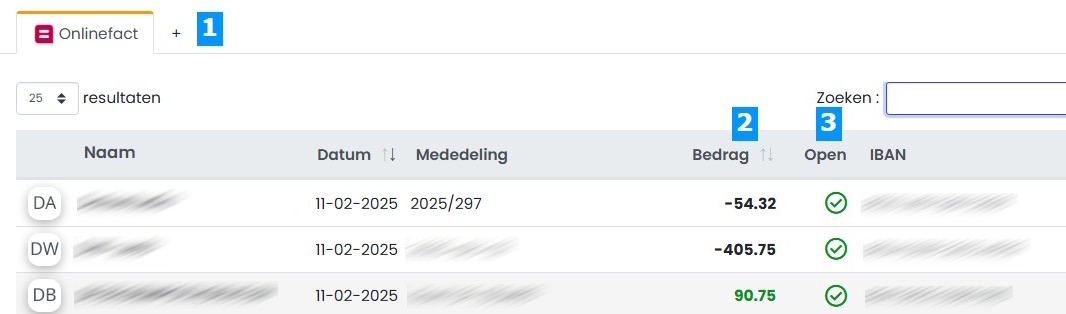
You will notice that this overview looks very similar to your online banking platform. The main difference is the 'Open' column (3). This represents the outstanding amount that has not yet been linked to an Onlinefact document. If the amount has been fully matched, this column will display a green checkmark.
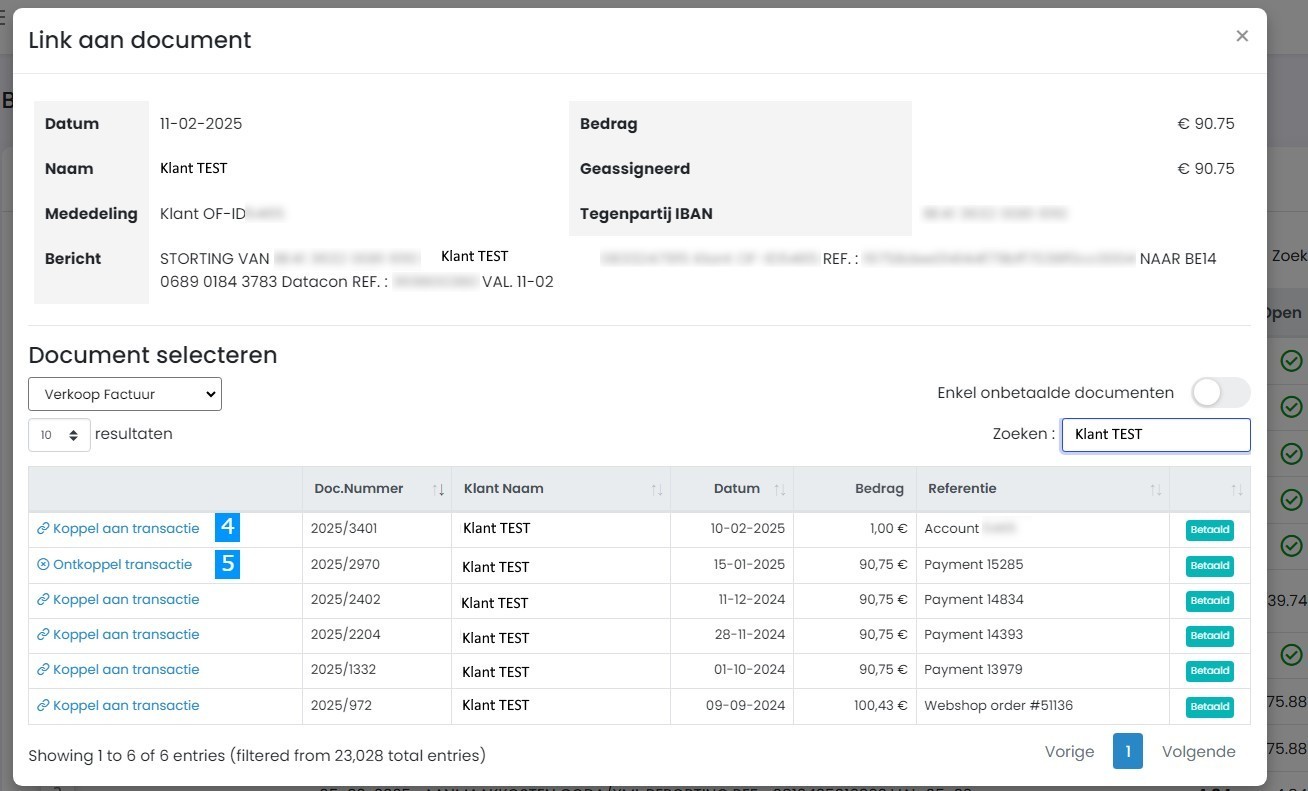
If you want to manually link a document, you can do so by clicking on the transaction. You will then see a list of outstanding documents with suggestions based on the outstanding amount and customer information from the transaction. Once you have found the correct document, click on 'Link transaction' (4).
It is possible to link multiple payments to one document, as well as link one payment to multiple documents.
If you want to unlink a document from a transaction, follow the same procedure: click on the transaction, then at the top of the document list, you will see the already linked documents. Click on 'Unlink transaction' to remove the link (5).