Set up cash register buttons
Do you want to add buttons to the cash register system? You can do this in the back office, under ‘Cash Register’ > ‘Checkout buttons’.
-
Choose under ‘Groups’ on the right which category you want to add this button to, or create a new group via the ‘+’ under the existing groups.
-
Under buttons, press ‘+’ to add a button or on an existing button to edit it.
-
You will get the following options:
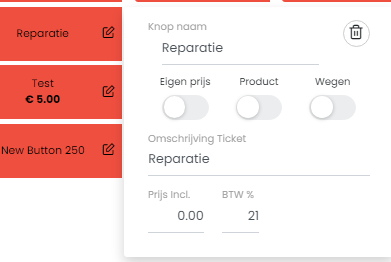
| Button name | The name you want to give the button |
| Own Price | If you enable this, you can set a price under ‘Price Incl’ for this product, which will always be the same. If you want a variable price, leave this button off and leave the ‘Price Incl’ at 0. The price will then be the amount you enter before pressing the button.! note that you enter ‘VAT %’ for both cases |
| Product | If you enable this, you can connect this button to a product in your product list. This will then take over the price and adjust the stock at the end of the transaction. |
| Weighing | If you have a product with a price per kg, then indicate this. The price will then be calculated based on the weight and the price per kg that you enter in 'Price Incl'. |
| Ticket Description | How the product is described on the receipt |