Retail and stock in your POS

Every sale updates your stock. Variants, barcodes, labels and stocktaking in one system.

A till that knows your stock

Every sale at the till updates your stock immediately, so you always know what is in your shop.

In retail it's all about the right product at the right time. With Onlinefact, till and stock management are one: scan a product at the till and it leaves stock immediately. Size and colour variants, multiple barcodes, labels, stock counts, minimum stock and discounts are all managed in one place, in the back office in your browser.

Advice

Curious what this means for your shop? Ask for free advice, or call us on +32 78 70 02 02.

Yes please!

What your till does for your stock

  • Updated automatically

    Every sale at the till deducts stock straight away.

  • Size and colour

    Variants, each with its own barcode and stock.

  • No more running out

    Minimum stock and a "To order" report.

  • Labels in bulk

    Print price tags and barcode labels in one go.

  • Deposits added for you

    Deposits appear on the receipt automatically once set up as an extra on the product.

  • Discounts your way

    Percentage, new price, price reduction or tiered discount.
Stock that keeps itself up to date

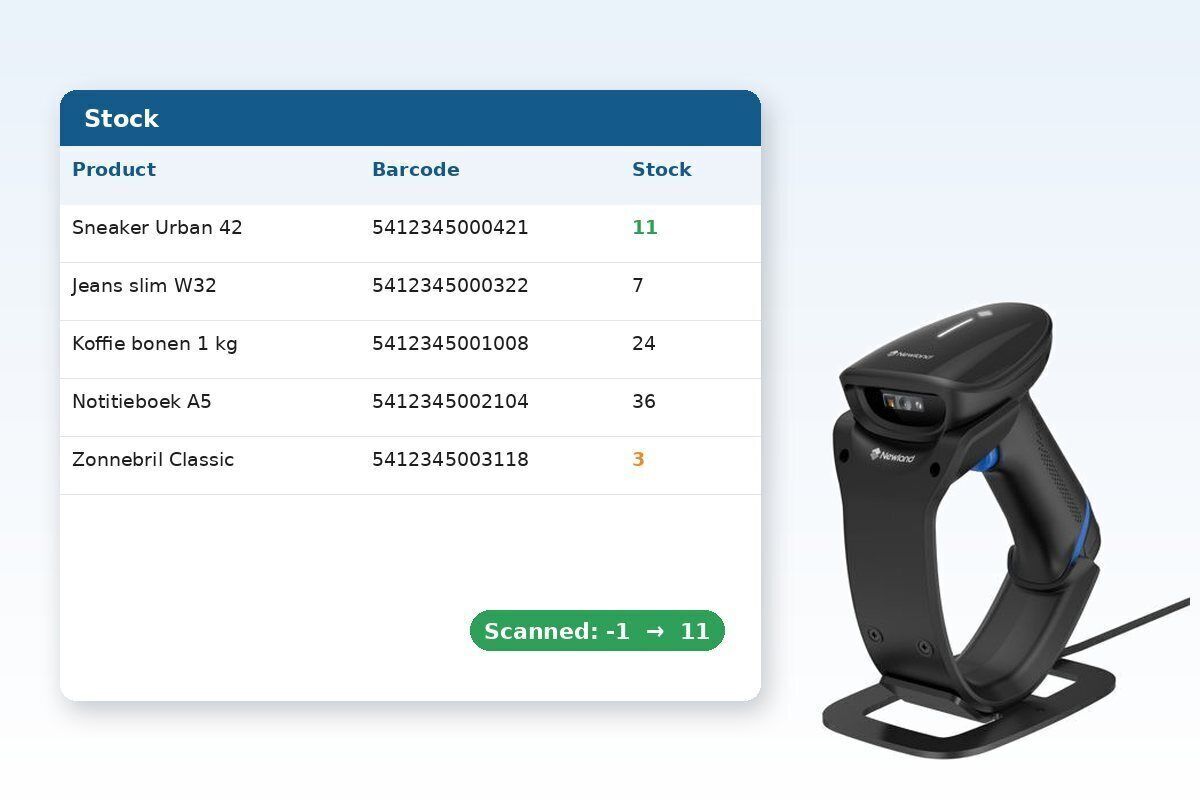
Sell a product at the till and it leaves stock at the same moment. Deliveries are booked in with a purchase document and returns go back into stock. In the back office you see what is left per product, on your computer or on the go.

Real-life example: On Saturday evening, the owner of a shoe shop sees there is only one pair left of a popular sneaker in size 42. He reorders for Monday.

  • Deducted on every sale
  • Deliveries booked in via purchasing
  • Categories, brands and seasons
  • Product import and export via Excel or CSV

All about stock management

Size and colour variants

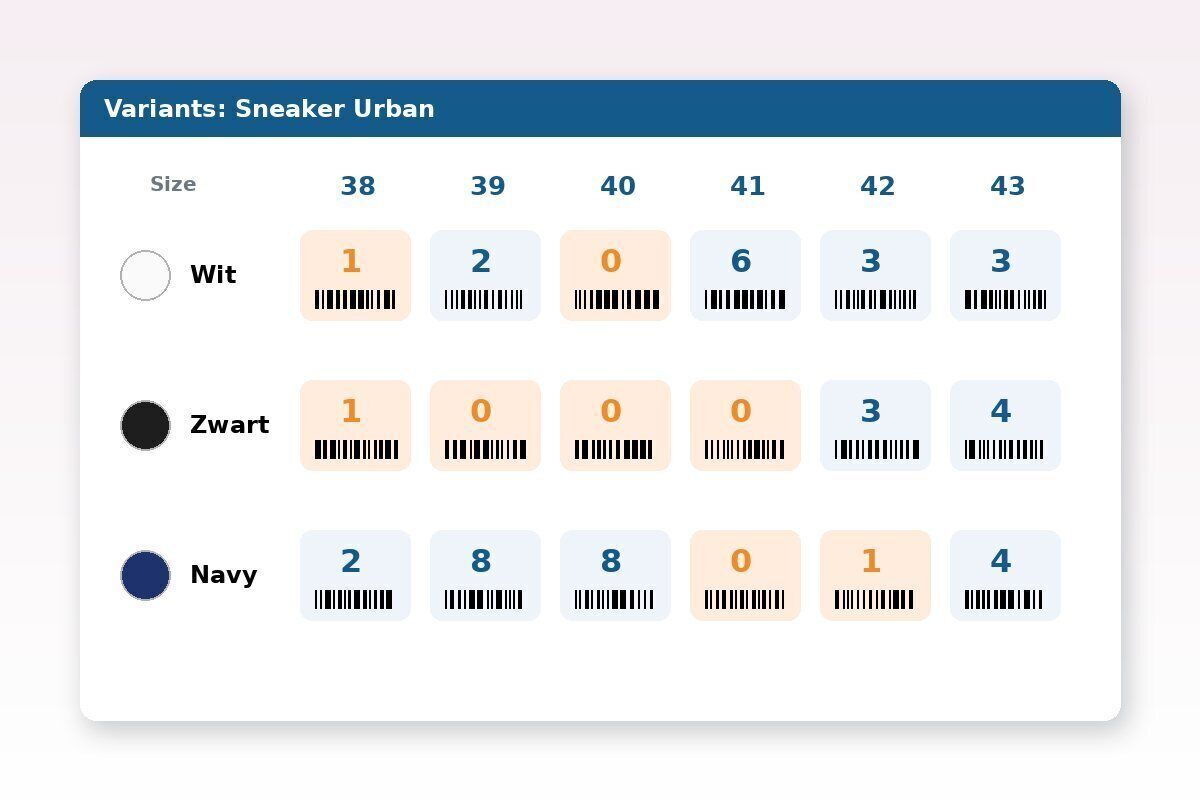
Jeans in six sizes and three colours is one product with eighteen variants. Each variant gets its own barcode and its own stock. At the till you simply scan the label and the right size and colour leave stock.

Real-life example: A fashion store sees at a glance that the black sneaker in sizes 38 and 41 is sold out, while the white one is still well stocked.

  • Product options such as size, colour or model
  • Own barcode and stock per variant
  • Labels with size and colour

Barcodes, labels and shelf labels

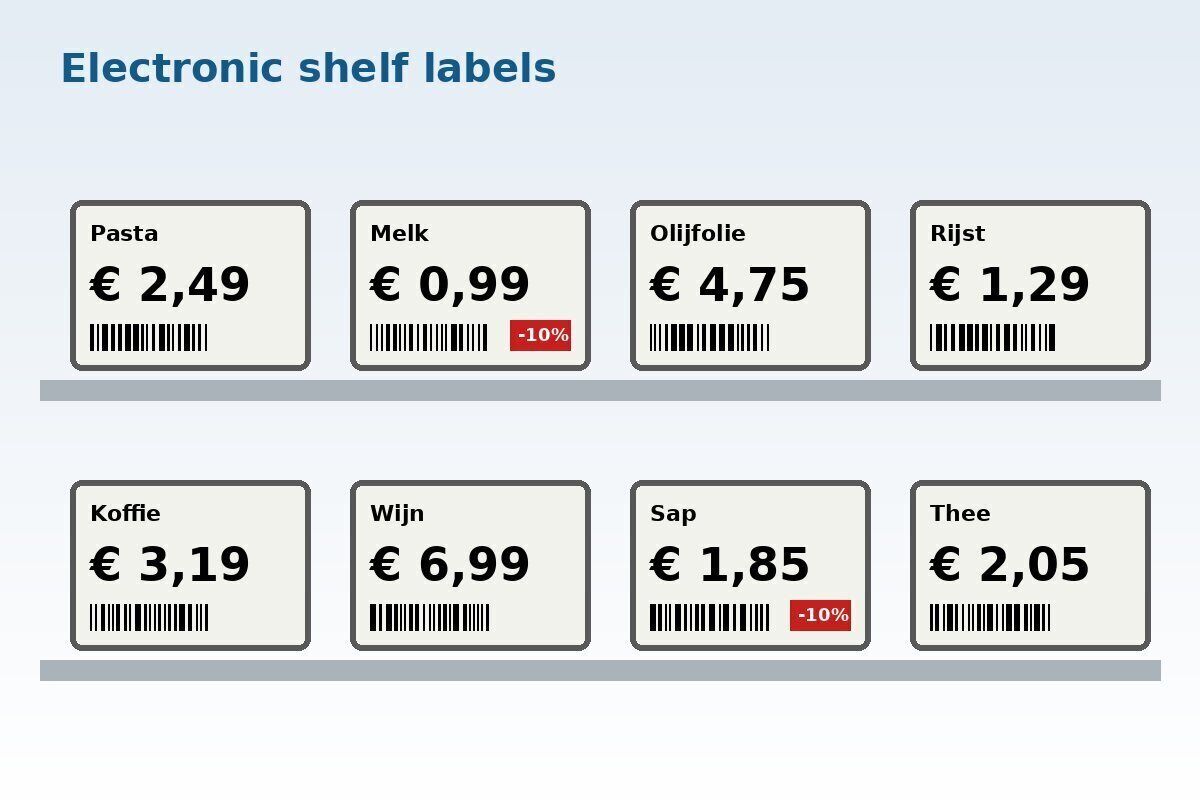
A product can have several barcodes, for example from two suppliers. With a multipack barcode you sell a crate or box in one scan, with the right number of units. Price tags and barcode labels are printed from the back office, per product or in bulk. With electronic shelf labels, the shelf price follows the price in your till.

Real-life example: A convenience store raises the price of coffee. The electronic shelf labels show the new price straight away, without anyone walking around with a pricing gun.

  • Multiple barcodes per product
  • Multipack barcodes (for example a crate of 24)
  • Labels on A4 or on a label printer
  • Electronic shelf labels

See the label printers

How it works

From product list to sale, in four steps.

  1. Import your products
    Load products via Excel or CSV, or create them in the back office, with variants, barcodes and prices.
  2. Print labels
    Print price tags and barcode labels for anything that has no barcode yet.
  3. Sell and deduct
    Every sale deducts stock. Deliveries are booked in, returns go back into stock.
  4. Follow up and reorder
    The "To order" report shows what falls below minimum stock.
Stock counts with the scanner app

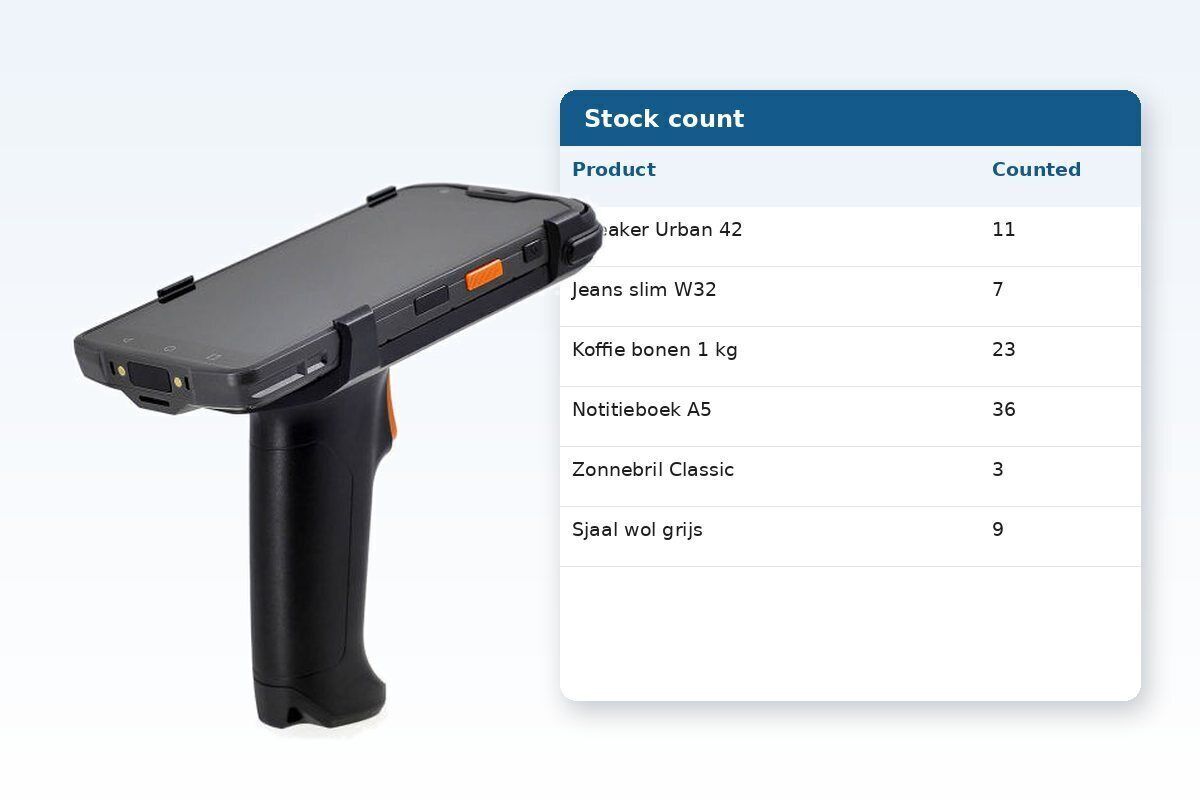
Stock counts are done with a stock count document. Scan the products on the shelf, enter the counted quantities and stock is corrected in one go. With the Onlinefact Inventory scanner web app you can also check products, pick orders and create documents, right in the shop or warehouse.

Real-life example: On 31 December a team of three counts the whole shop with handheld scanners. Once the count document is closed, stock is accurate to the unit.

  • Stock count document and stock reset
  • Scanner app for product checks and order picking
  • Warehouse locations per product

Minimum stock and "To order"

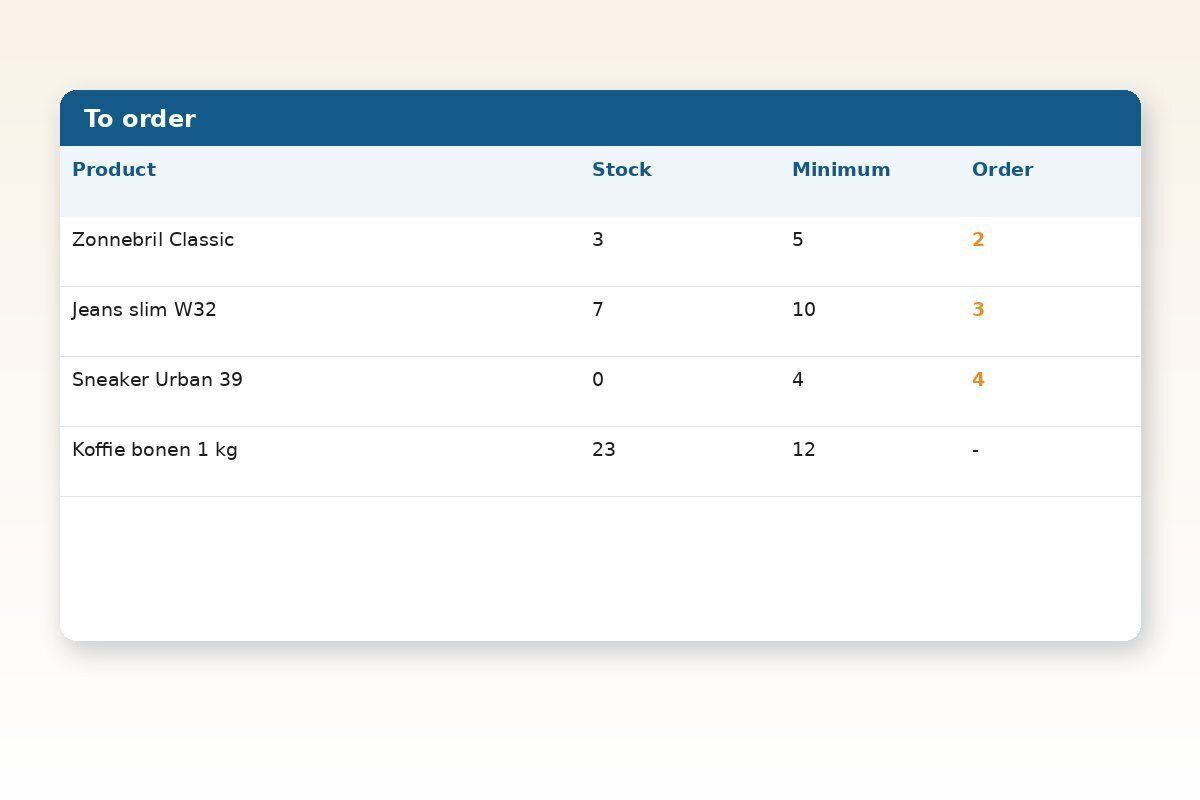
Set a minimum stock per product. When stock falls below it, the product appears on the "To order" report. You reorder in time without walking every shelf. Backorders are followed up in the same back office.

Real-life example: Every Monday morning a toy shop opens the "To order" report and prepares the week's orders in ten minutes.

  • Minimum stock per product
  • "To order" report
  • Backorder follow-up
  • Sell-through report per brand

Which feature helps your shop?

A few real-life examples.

Your shopMost useful features
Clothing or shoe storeSize and colour variants, labels with size, sales via discounts
Convenience storeMultipack barcodes, deposits as extras, electronic shelf labels
Drinks storeDeposits on the receipt automatically, crates and bottles with their own barcode
Delicatessen or food shopExpiry date per product, scale at the till
Gift shopComposite products for gift boxes
Shop with a warehouseWarehouse locations, scanner app for order picking

Deposits, extras and composite products

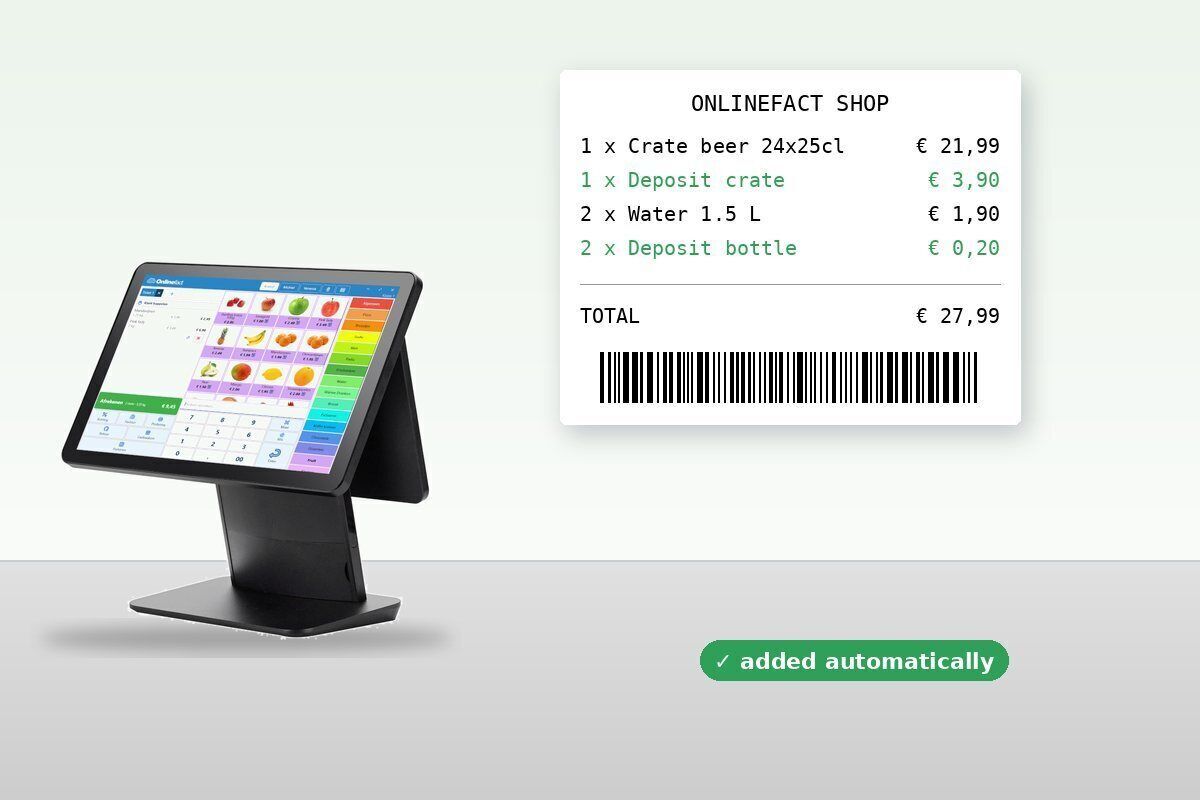
Some products automatically bring another product with them. Set up the deposit as an "extra" on the product, and on every sale it appears on the receipt by itself, with the right quantity. With composite products you sell a gift box or set, and the components are deducted from stock separately.

Real-life example: A drinks store sells a crate of beer. The crate and its deposit appear together on the receipt, without scanning anything extra.

  • Deposits added to the receipt automatically, once set up as an extra
  • Extra products with quantity
  • Composite products with deduction per component
  • Expiry date per product, with report

Frequently asked questions

Can I import my products?

Yes, via an Excel or CSV file. You can export them again too.

How do deposits work?

You set up the deposit as an extra product on the product. On every sale it is then added to the receipt automatically, with the right quantity.

Which discounts are possible?

A percentage, a new price, a price reduction or a tiered discount per product, plus price levels.

Can customers scan for themselves?

Self-scan is in development and coming soon.

Stock under control?

We'd be happy to show you how till and stock work together, using your products as an example.

Prefer to call? Call us on +32 78 70 02 02.

Contact us

More about stock management

Request Demo
Request Information