How to pair my bank account to Onlinefact?
Thanks to the bank connection, the program can match your transactions with your documents within Onlinefact.
This makes it even easier to track payments. Follow these steps to link your bank account:
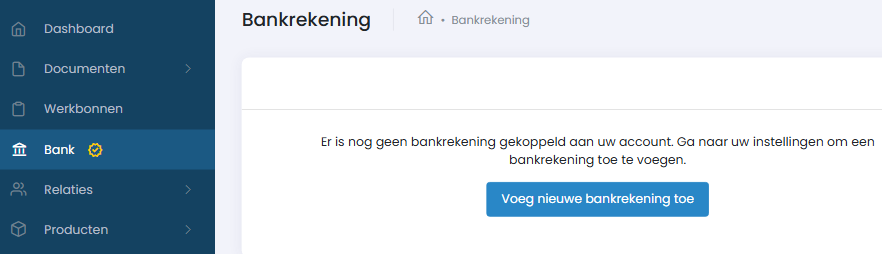
You can find this under the Bank section; press the button to be redirected to the configuration page.
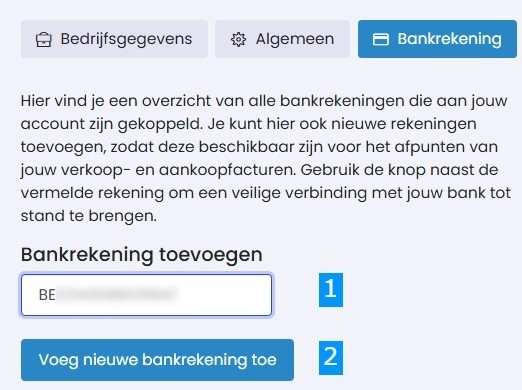
- Enter the account number of the account you want to link.
- Press the blue button to add your account. You will now see your account appear in the overview on the right side of the page.
- Give this account a name. It does not have to be the actual name of the account; choose a simple alias within Onlinefact.
- Press 'Connect' to link this account.
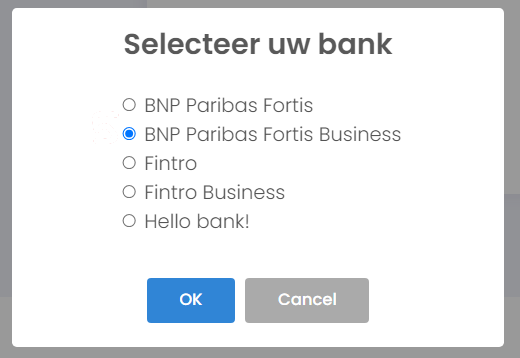
- If you are a member of an umbrella bank such as BNP, you may be asked which specific institution the account belongs to.
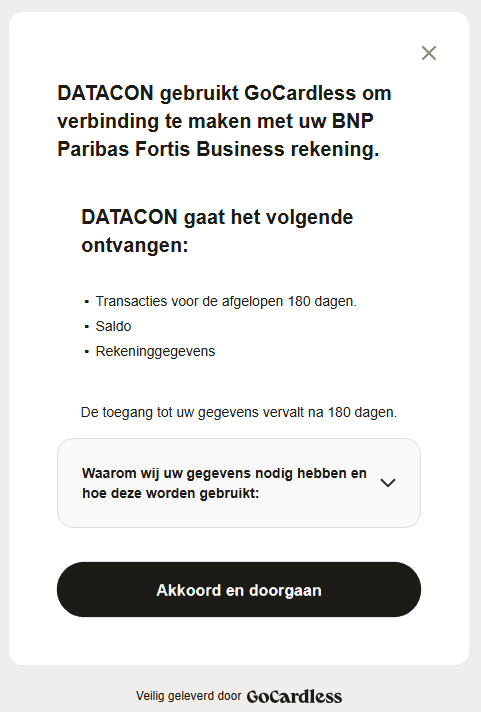
- You will be redirected to GoCardless for verification with your bank. It will request access to the following data:
- Reading transactions from the past 180 days
- The balance of this account
- The details of the account itself
! This is for data reading only. GoCardless or Onlinefact does not have access to perform actions on your account, such as making transactions or changing data.

- You will now be redirected to the bank so you can verify with your card reader or app. You may need to select the specific account if you have multiple accounts with this bank.